There’s detailed documentation on all the aspects of the new legislation here, but to cover the basics (as I’m sure you know them by now!) here’s how to use the system.
Enable GDPR Features
You need to enable the GDPR features in your account settings first: go to the settings page from the menu at the top right of title bar, and select Portal under the Advanced Account Settings tab:
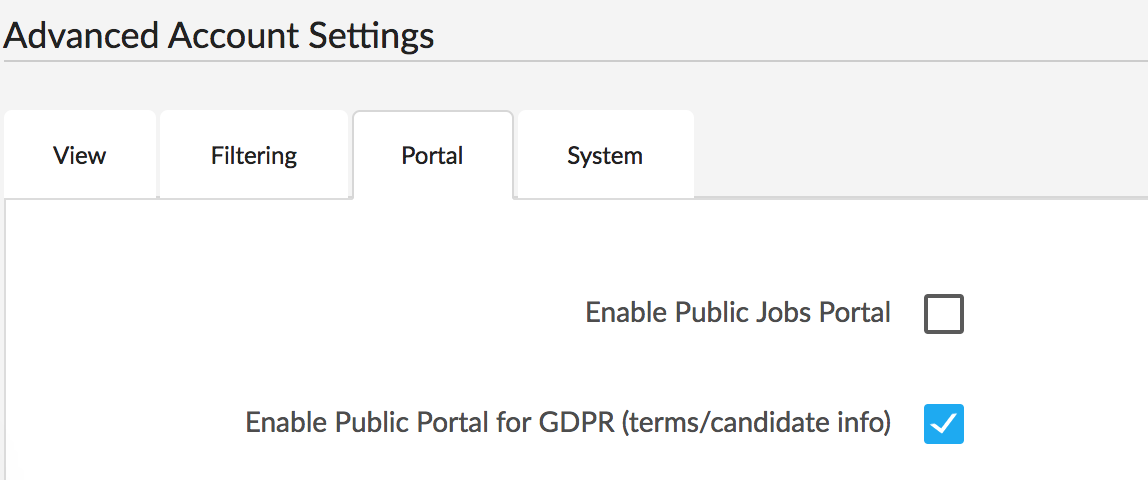
Tick the GDPR checkbox and click update account.
Terms
You should have a publicly available page or document that describes how you use and process personal data. You can either host this with us or supply a link in the advanced account settings above which points to where you host your terms on the web.
Opt-in
The new legislation requires you to get explicit opt-in for any data processing you wish to do. To do this in the simplest possible way in the CRM, you have a few options:
Create an Email Template
If you build a template, you can send the same email to multiple candidates (either in a big list as a campaign, or as you contact candidates).
There are new template variables for GDPR:
-
Candidate/Opt In Link will insert a link a candidate can click on which will be immediately registered as opted in in the system
-
Candidate/Opt Out Link will do the same but for a link to opt out of communication – you can use this to allow someone to “unsubscribe”
-
Global/Terms Url will insert a link to your terms page (if it has been overridden to point to your website, this will be inserted here)
So a sample template might say:
Hi {First Name},
As I’m sure you know, to comply with GDPR legislation, we need you to let us know that you are happy to let us continue finding you the best opportunities. Please let us know that you opt-in to our data processing terms by following this link:
{Opt In Link}
Many thanks,
Colin
Find our terms here: {Terms Url}
Unsubscribe to any further communication here: {Opt Out Link}
Manual Opt-in
Rather than using an email template, you can just copy the links to use in your own emails (or LinkedIn messages etc) – every candidate has a section with their status on their profile page:
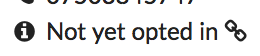
The link icon to the right opens up a window with the opt-in/out links (as well as the link for giving a candidate access to their data):
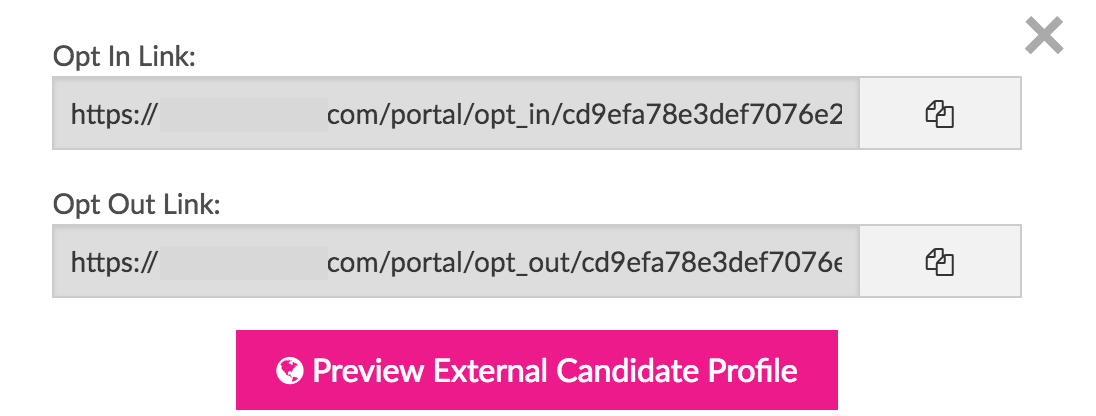
You can click the buttons to the right of each link to copy the link to the clipboard, and then you can add these links to any email or message you need to.
Deletion
If a candidate requests deletion of their data, you can still maintain the statistics related to that candidate (e.g. that a candidate was put forward to a job and made it to Final Interviews), while removing all of their personal information to be GDPR compliant.
The deletion process is described here.
Current Status
To keep track of the status of your candidates, you can add the current opt in status to your candidate list view by going to the settings page and configuring the candidate list:
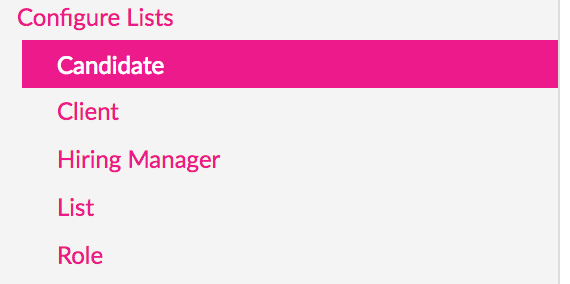
If you want to see the opt in status, just enable the following field:
