Whether you’ve just started with Octavia CRM or have a batch of new candidates you’d like to add quickly, the bulk import tool provides a one-stop, simple interface to do just that.
Access the bulk importer directly from the top navigation menu, by clicking on the following icon:
Set Default Values
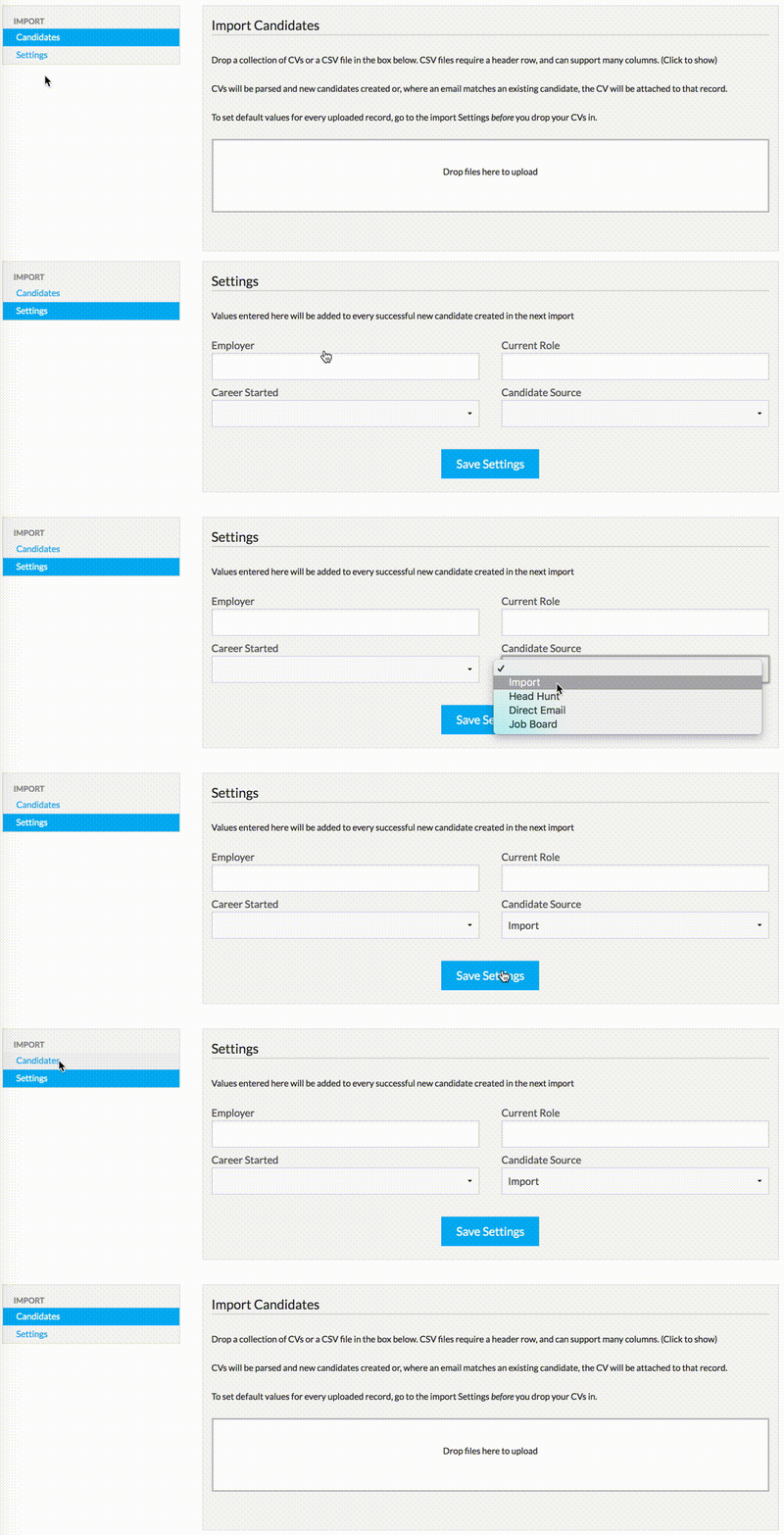
Before you start your upload, you can apply a set of default values to the candidate fields, that will be filled in for each successful upload (useful if you have required fields that can be set on every record). Click the Settings link in the left-hand menu, apply the values you want to set, and click “Save Settings”:
Upload CSV Data (optional)
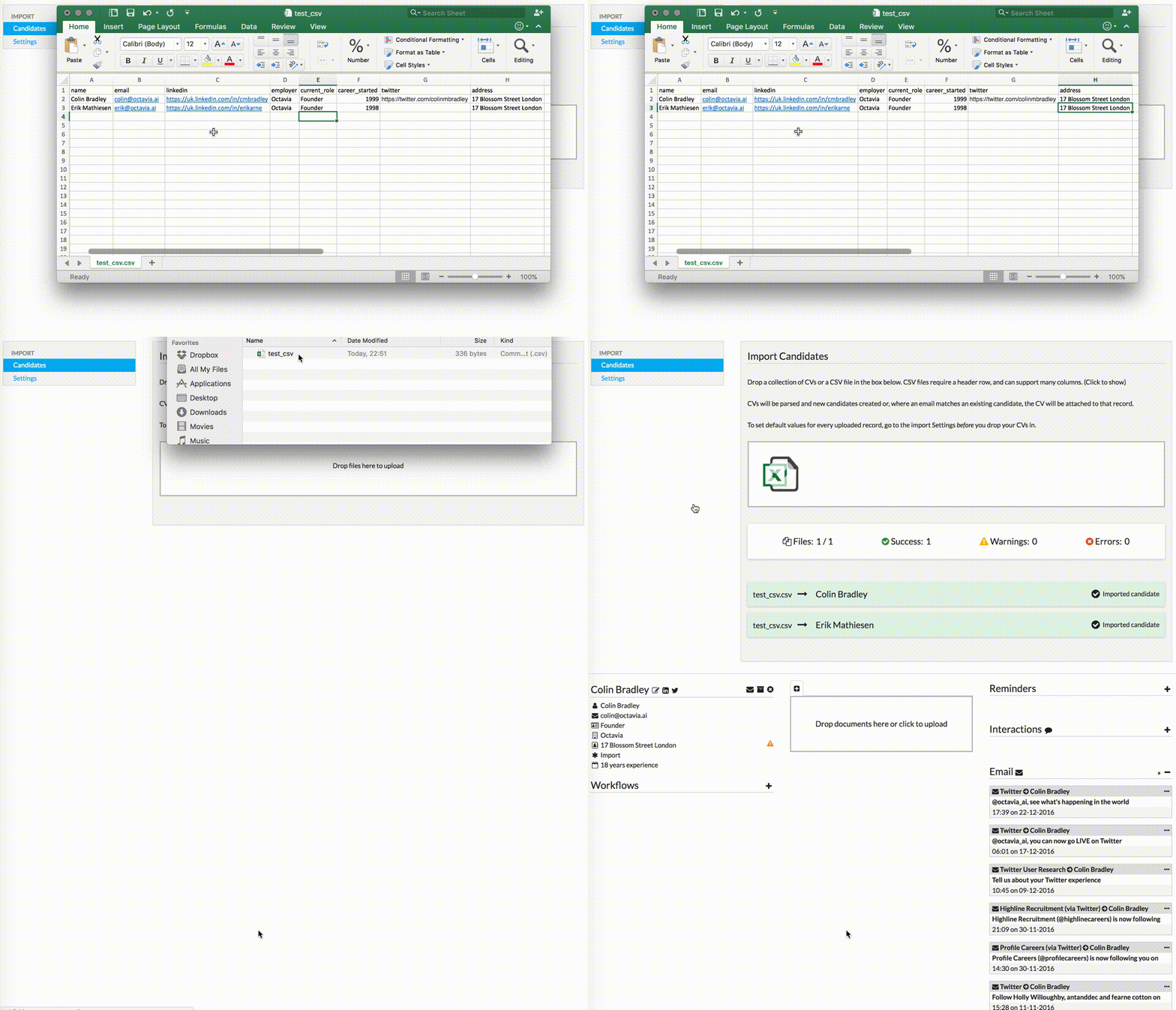
If you have a spreadsheet of candidate data, you can upload this first (before any CV documents) – any CVs uploaded later will be parsed and auto-matched with successfully created records from the CSV file.
Ensure your CSV is set out in the correct format – with a header row, and field headings matching the table in the description (view this by clicking on “Click to show”).
Important: ensure you have values for any required fields (or disable the “Required Field” flag in the Settings/Candidates/Fields section).
Then simply drag and drop the CSV into the upload box, or click the box and select the CSV file from your computer:
Upload CVs
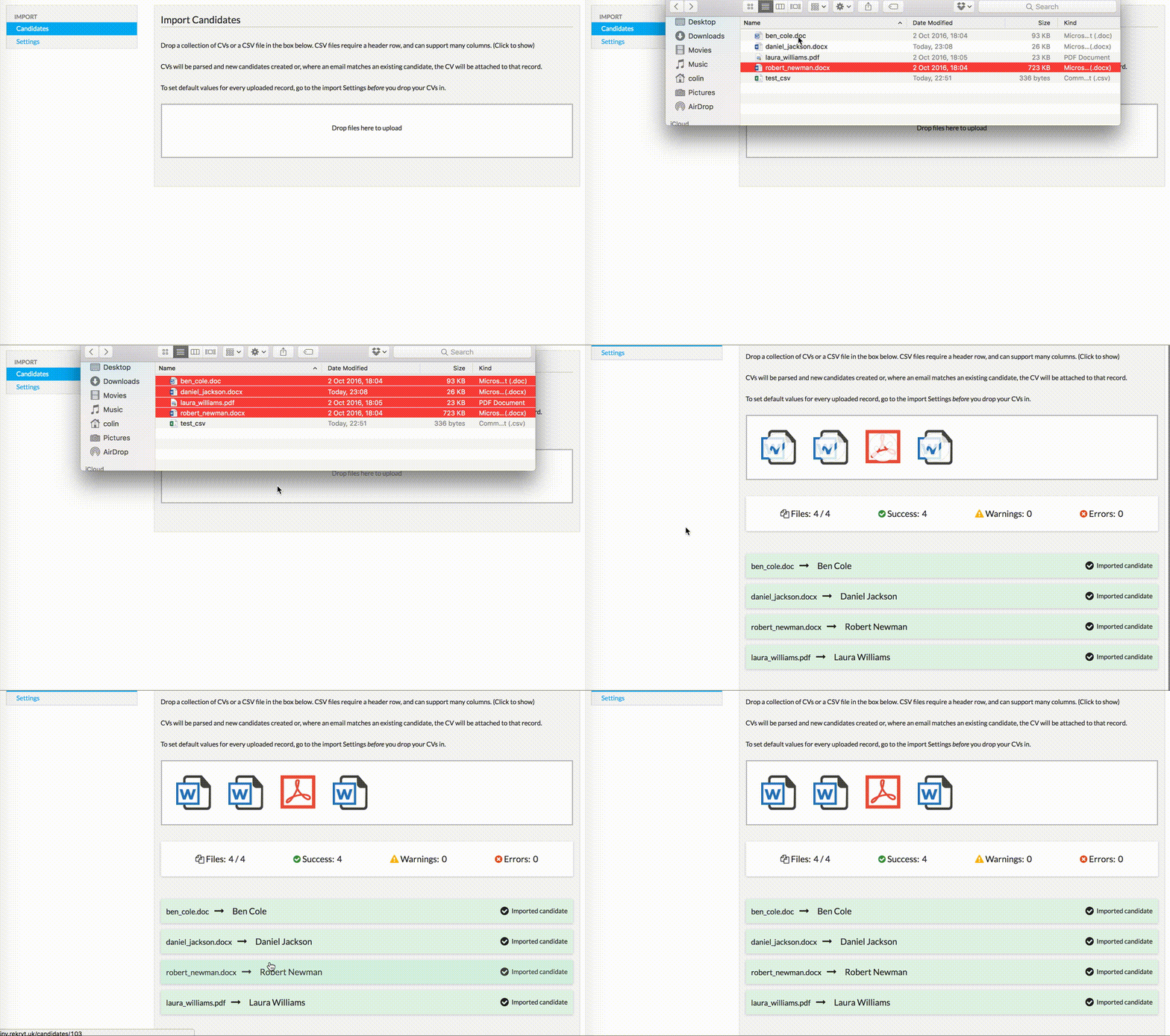
CV uploading is super simple: you just need to drag a collection of CVs onto the upload box, and they will get processed, parsed, and created as candidates, providing the parser can extract all the required information. If you have configured required custom fields, make sure you set defaults for these in the Settings section to ensure that valid candidates can be created.
Handling Errors
There are two types of error that can occur when importing candidates:
Parser Errors

These occur when the Octavia parser can’t extract any data at all from the CV (some PDFs which store images rather than text can cause this problem): in this case you will need to enter this candidate manually.
Validation Errors

These occur when the candidate fails to save because it is missing required fields (or they have incorrect values). In this case, you can click the error, and it will open the new candidate form with all the fields pre-populated for you. If you try and save the candidate from this screen you will see the error message and can rectify it and save the updated candidate.