A targeted email campaign, with tracking of opens and analytics, is a great way of testing your messaging (comparing engagement with different email templates) and saving you time. We’ve tried to make it as simple as possible in the Octavia CRM.
Please note that to use email tools within the CRM, your administrator will need to have enabled email integration and you need to have linked your email account with the system.
Getting Started
To create a campaign, you first need a shortlist of recipients (more on that here), and secondly you need an email template to send to all of your recipients (more on that here) – note that if you want to track link clicks or opens, this must be set on the template.
Once you have both of these ready and in place, it’s a relatively simple exercise to get a campaign up and running.
Create a Campaign
The campaigns screen is located within the messaging centre: to navigate to it, simply click the envelope, and then select the campaigns tab:
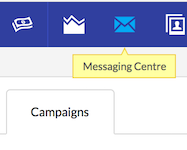
From here you can view your historic campaigns and their statistics, but let’s create a new one by clicking the Create Campaign button.
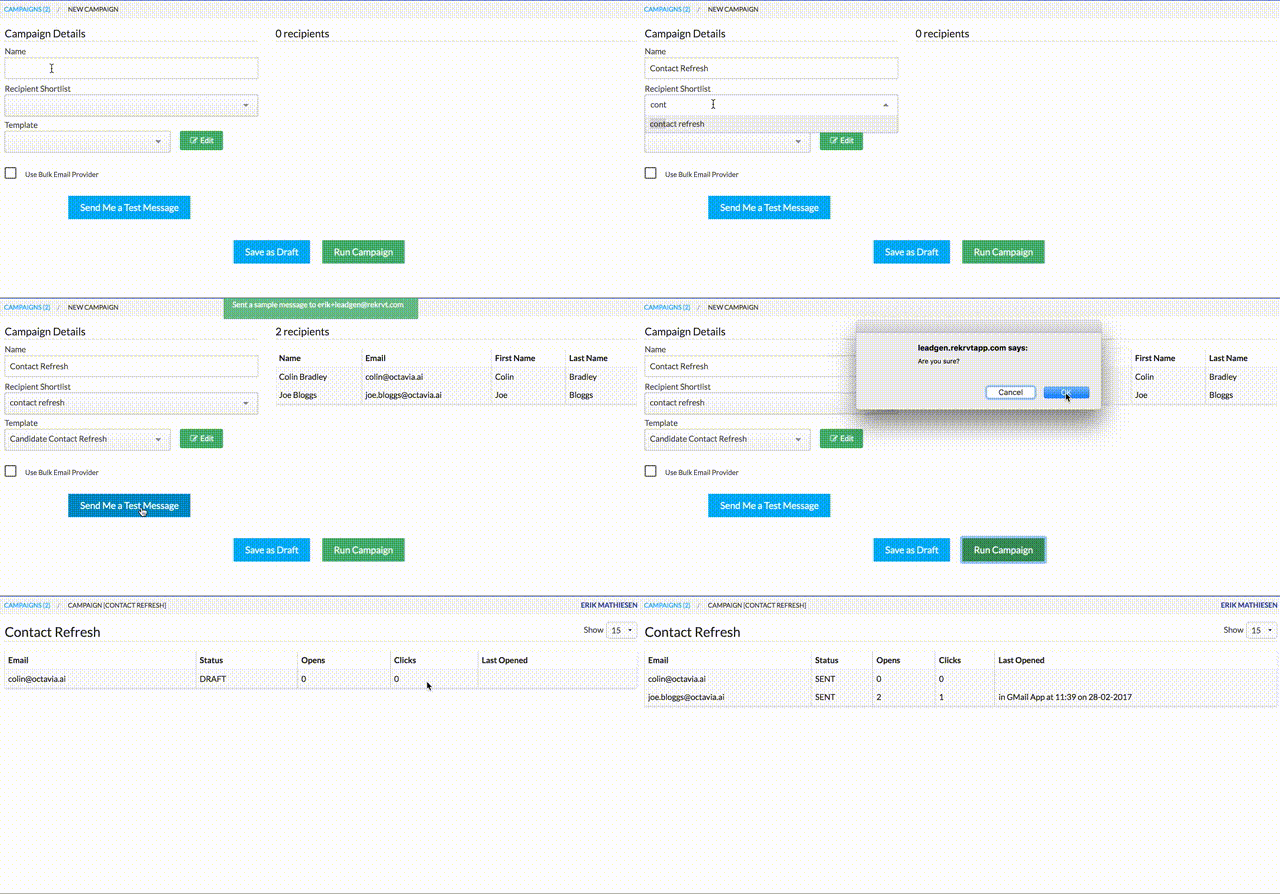
Once we’ve filled in our shortlist we can see a list of recipients (that we can double check is correct), and after adding our template, we can send a test email to ourselves to sanity check the template. This will create an email as if to the first recipient, but send it to us instead of the intended recipient. We can also use a bulk email provider if our campaign is to more than a targeted set of recipients (see note below)
Once we’re happy that all is in order we can run our campaign!
Once a campaign is running we just need to refresh the page to show the progress, and if anybody has opened the email, or clicked any links (if these are enabled on your message template).
Important Note #1
Many email providers have sending quotas – a number of emails you are allowed to send a day before you are blocked from sending more emails. Be careful you don’t exceed these – if in doubt, use the Bulk Email Provider. If you abuse your email address you can be temporarily banned, and if your recipients consistently mark your emails as spam it can eventually lead to your domain being blacklisted by some email providers.
Using the bulk email provider will make your emails appear in the Promotions tab of a GMail recipient.
The key point here is: create targeted campaigns to individuals you know are interested in your message, and you shouldn’t have issues. Don’t spam!
Important Note #2
Make sure all of the variables you use in your template are present on each recipient of a campaign.