A list is a quick and easy way to keep track of your top candidates, or your key clients, as well as an effective way of managing a set of prospective candidates for a role.
Let’s look at how to set one up, and what you can do with them: let’s create a candidate list.
Creating a new List
There are two ways to create a new list. The first is from the lists page, but the most convenient is directly from the list/results page, because you can create a list directly while you are searching or filtering.
Lists are managed in the “actions” area of the list pages:

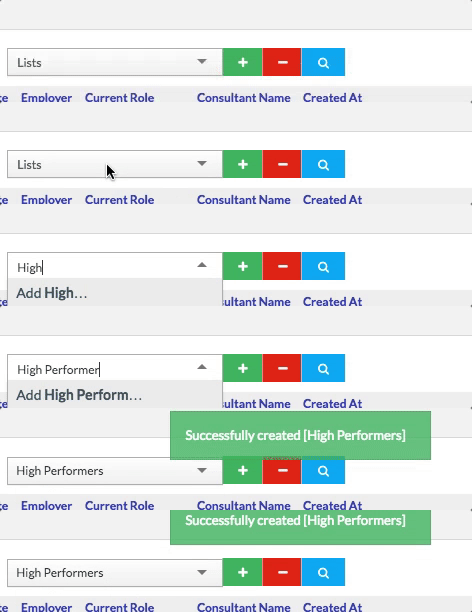
To create a new list, you simply have to click into the dropdown, and type the name of the list you want to create and hit enter:
Adding to a List
Adding Individual Records
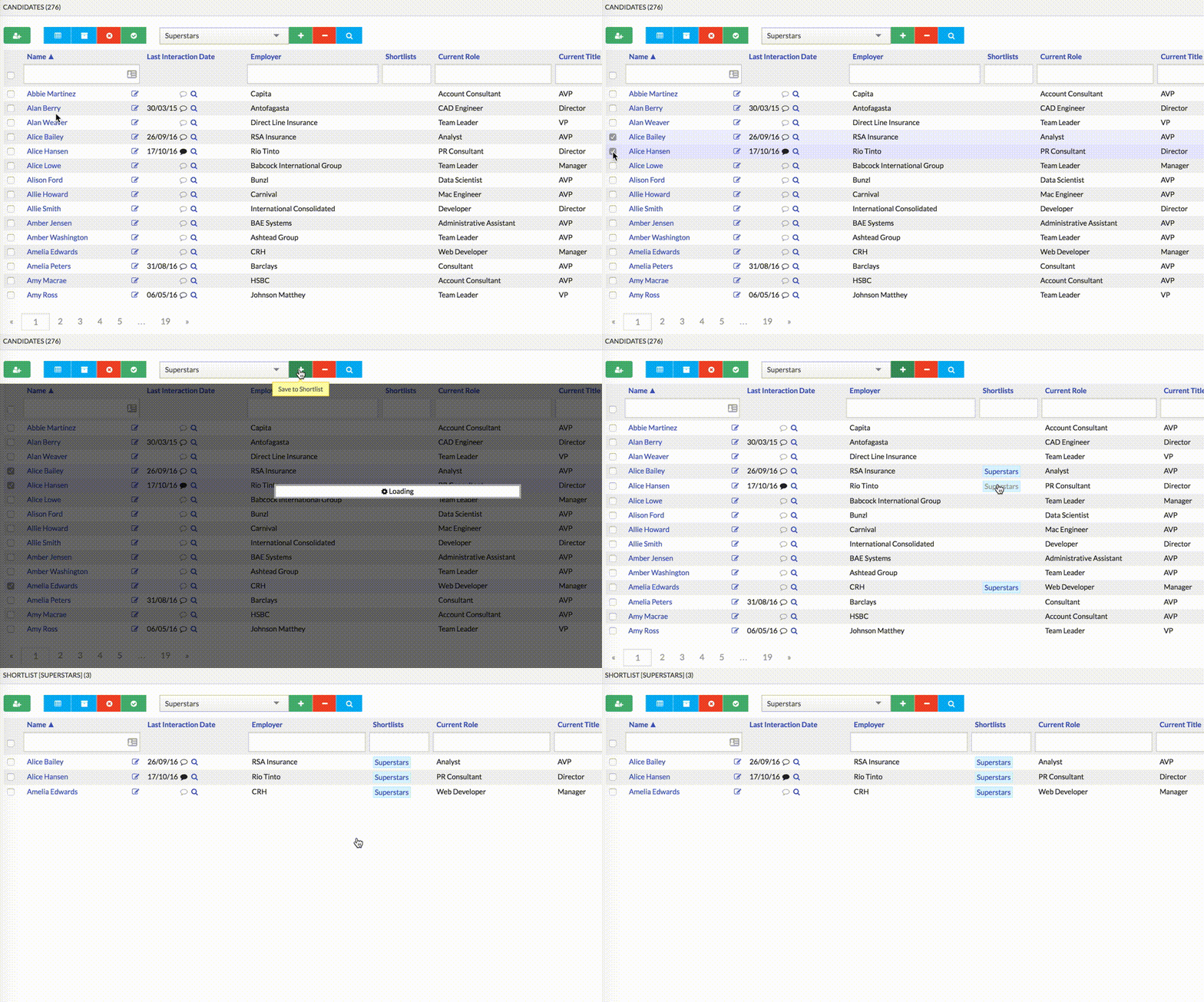
You can add results to a list at any time from the list screen. Simply check the candidates you wish to add (checking the box in the headers row will select the whole current page), and click the green plus icon:
Adding in Bulk
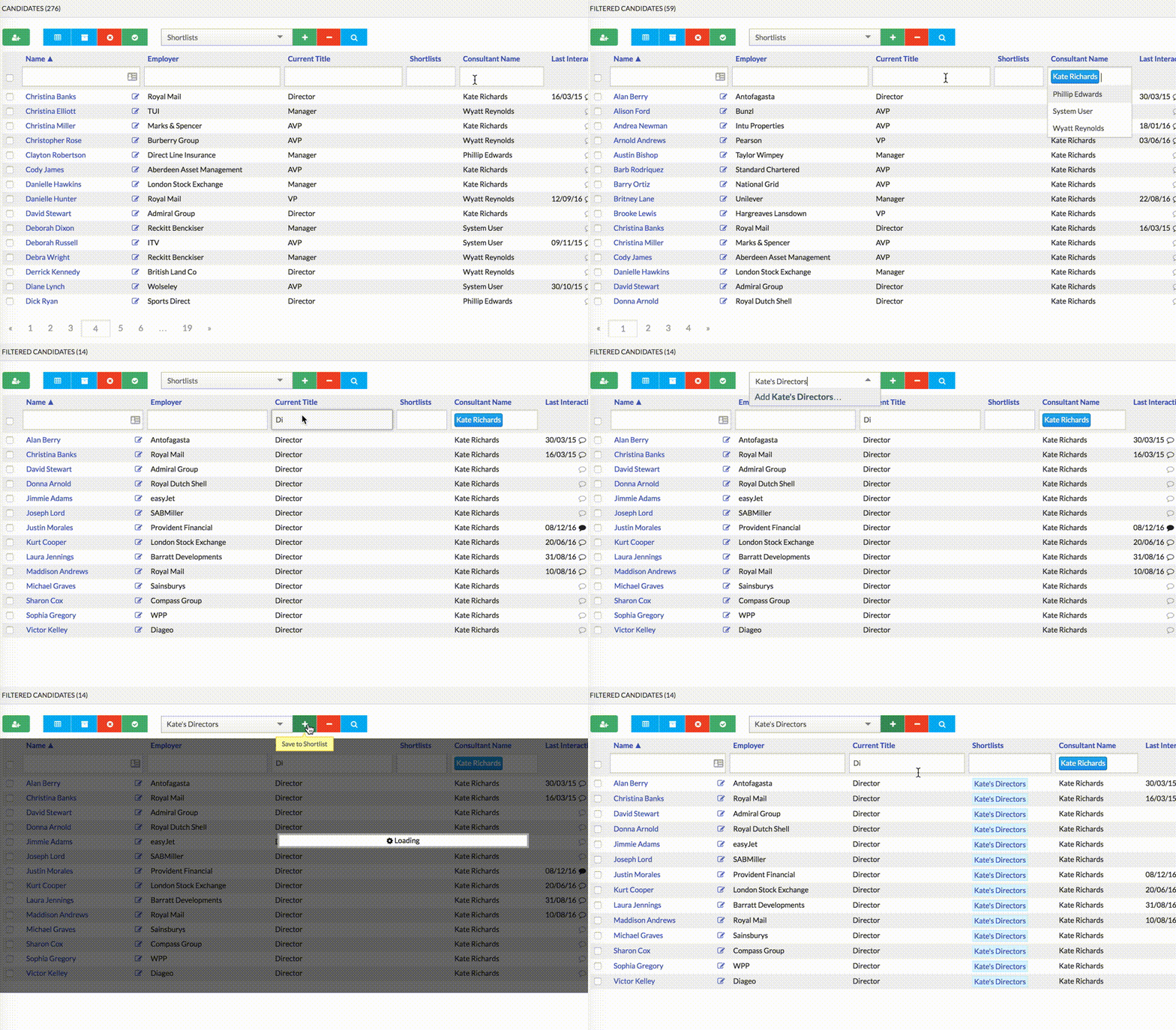
You can also add the entire set of results from a filter or a search: just do the filtering or searching, and then click the green plus icon without checking any candidates: the whole result set will be added to your list:
Viewing a List
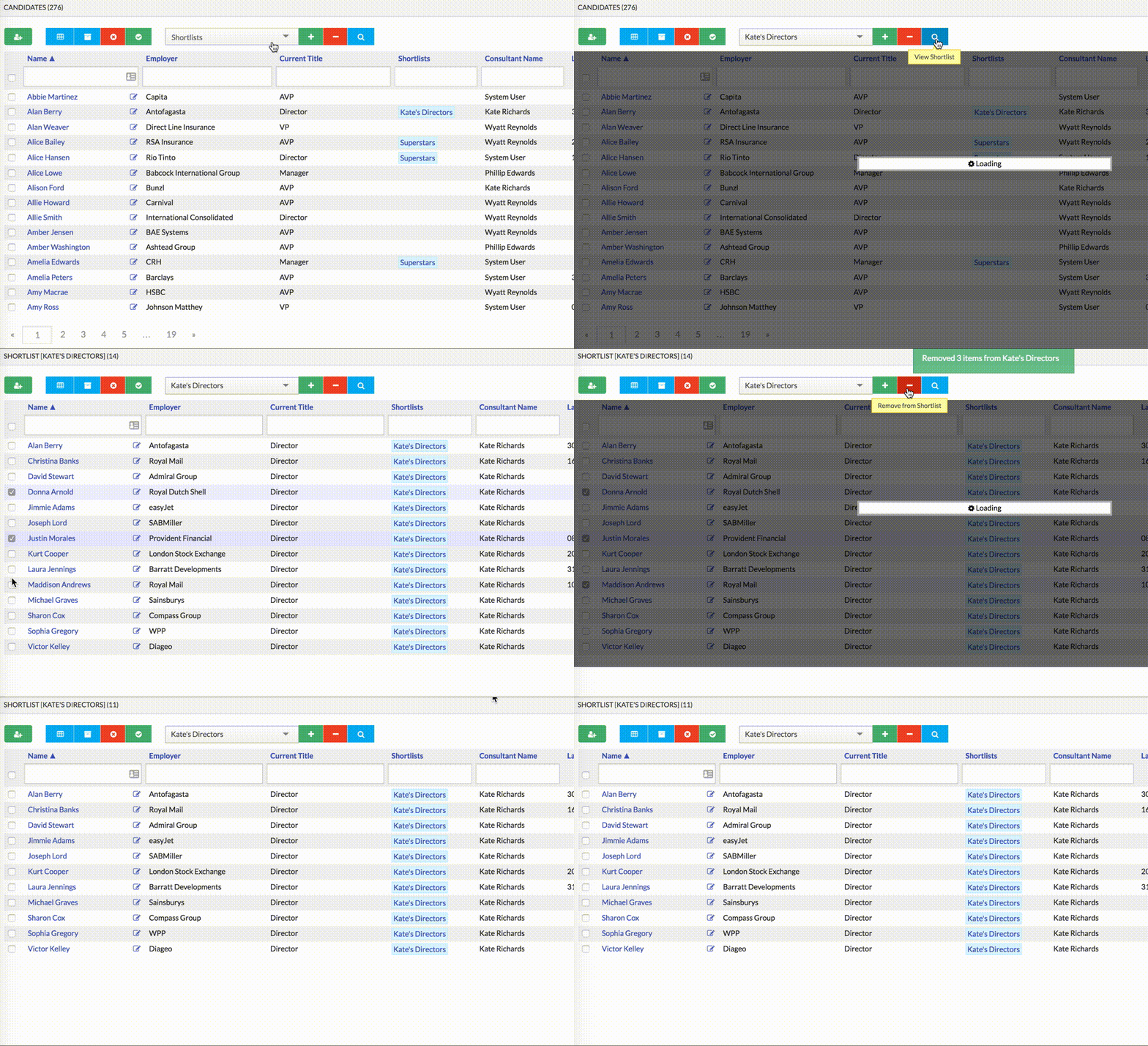
You can view a list either from the lists page (the list icon in the top navigation), or directly within the results screen. Just select the list you with to view from the dropdown, and click the magnifying glass button to the right.
Removing Items from a List
To remove items from a list is similar to adding to a list: check the candidates you wish to remove (or perform a filter), select the list from the dropdown and click the red minus button to the right of the dropdown:
Resetting your Search
Like any filtering or search operation, you can reset all the list information to empty by clicking on the red cross button next to the search box on the right hand side of the screen:
