Once a candidate has been linked to a role, it is simple to track their progress using a workflow card in the CRM.
The Workflows Card
Each workflow is represented as a card in the CRM. This card gives you a condensed breakdown of the all of the workflow detail, below is an example with the key parts highlighted:
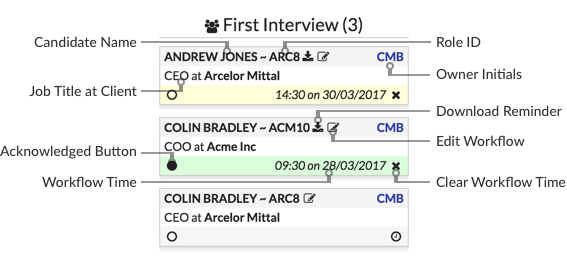
Cards will additionally show which stage of the workflow (e.g. First Interview) they are at when not separated into individual lists (i.e. on candidate or role profiles), and the status (e.g. Refused/Rejected) if not active.
The colours shown above are dependent on your theme, but there are separate footer colours for the default state at each stage (e.g. grey in the last card above), when a date and time is set but not acknowledged (the yellow in the first card above), when a date and time is set and acknowledged (green in the middle card above) and when a date and time is set and is in the past (not shown, but blue by default).
The Workflows View
The workflows view is accessible via the following icon in the top menu:
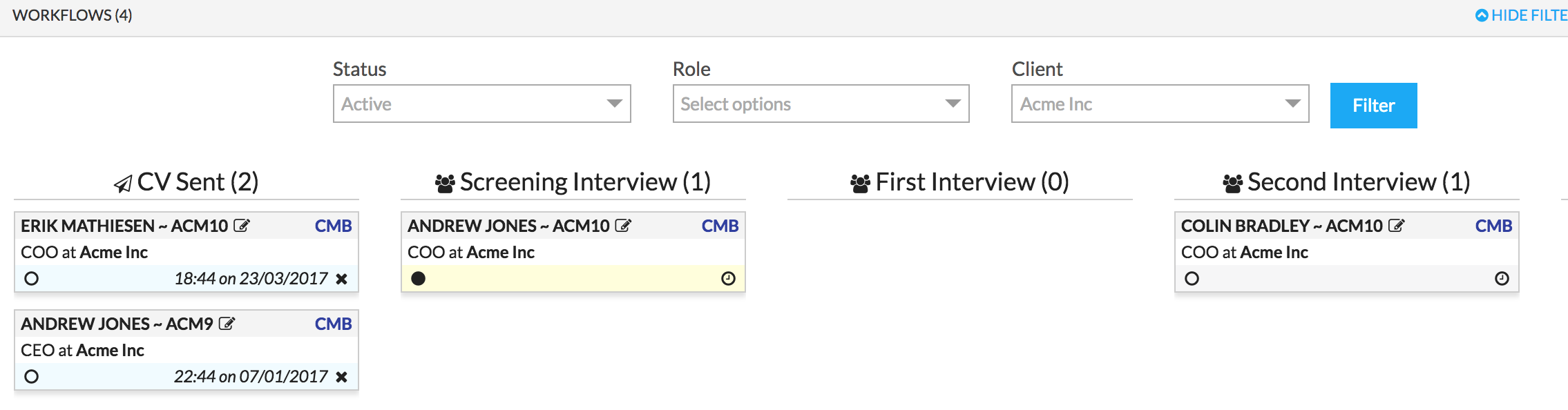
This screen provides a one-stop overview of your current pipeline. Each step in your pipeline/workflow is displayed as a separate list of cards that can be filtered by clicking “show filter” in the top right:

The layout and colouring is meant to provide you with an at-a-glance update on your outstanding tasks (e.g. an interview time has been set but not acknowledged by all parties, so you might want to follow up to confirm it).
Advancing Workflows
To move a card through the pipeline, you can simply drag and drop the card:
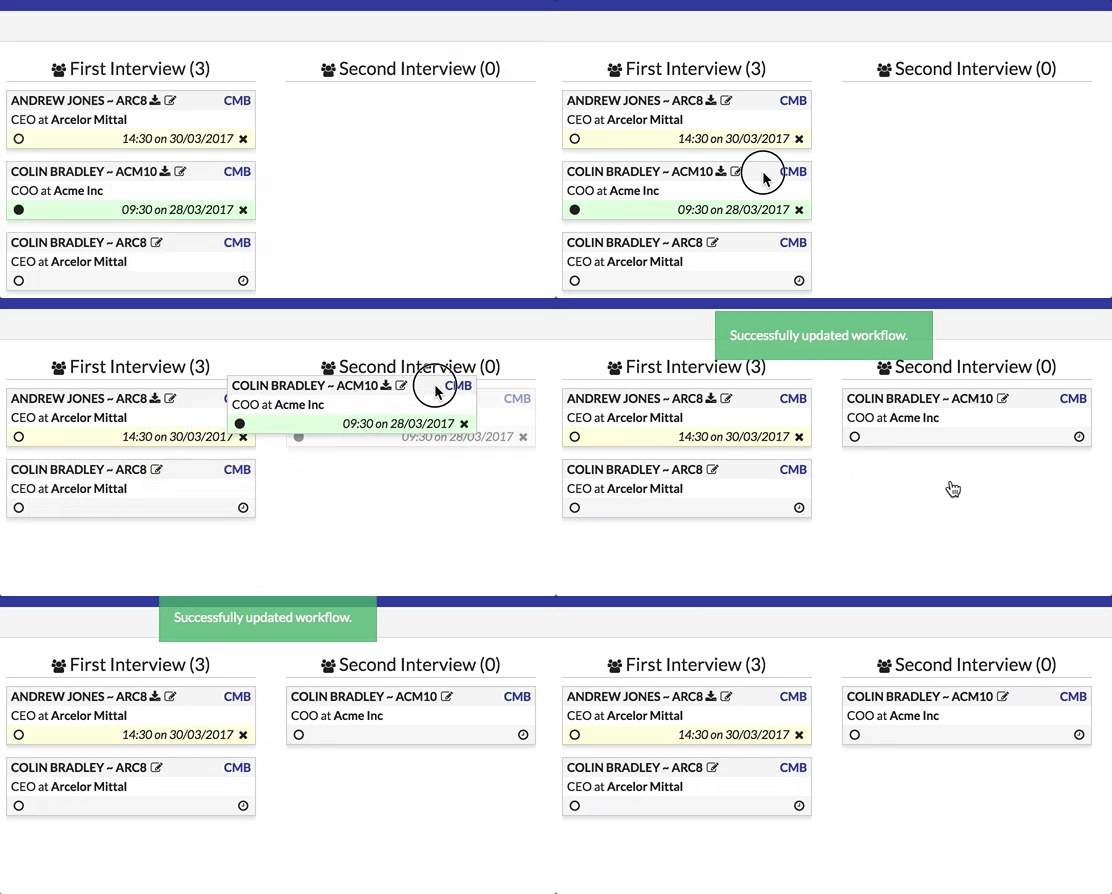
You will notice above that the time and acknowledged button are cleared as you update stages.
Editing Workflow
To update workflow times and add any additional information, you can use the edit button:
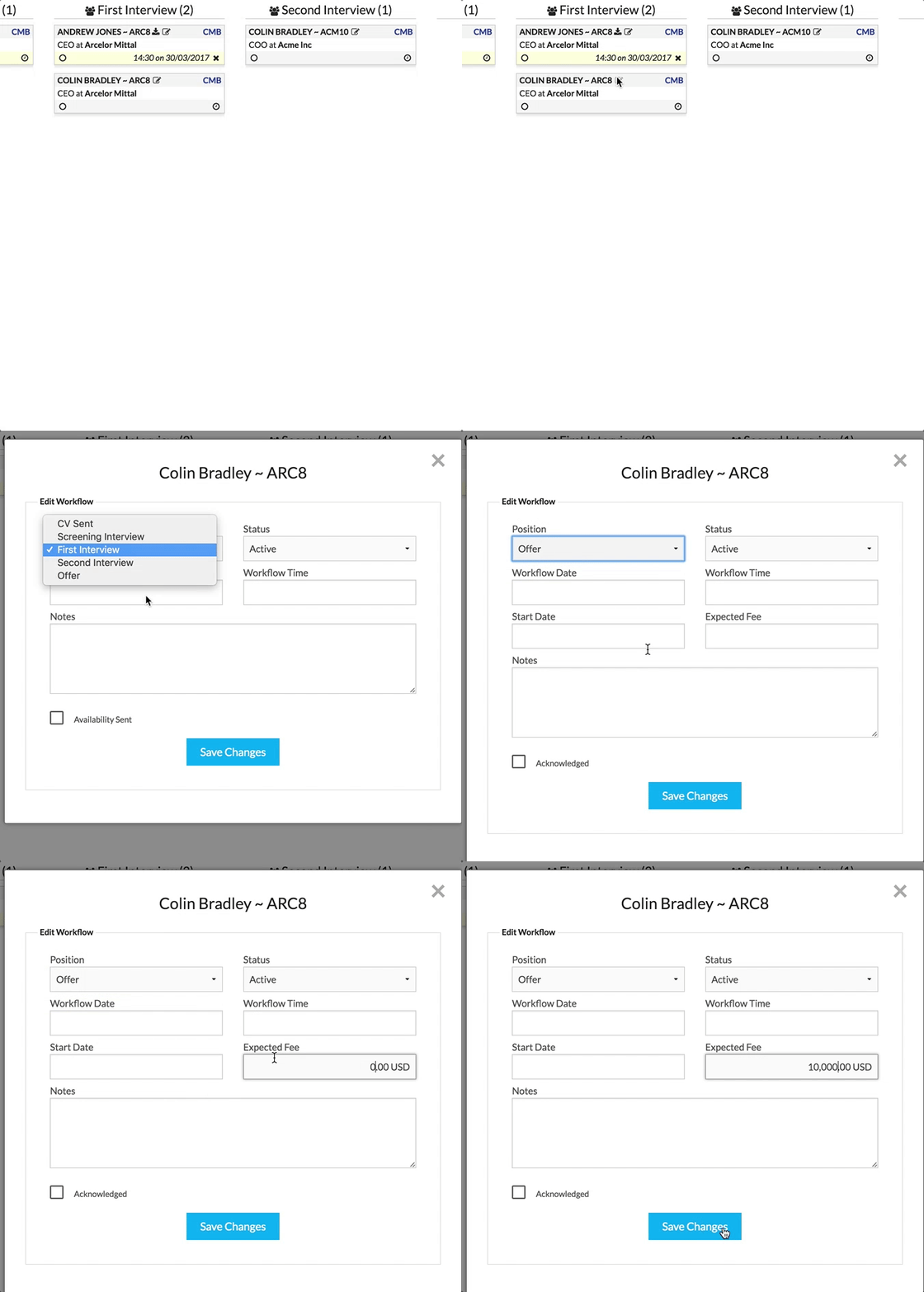
As you change the position, new fields might appear, depending on your workflow configuration (e.g. above, for later stages you can add an expected start date and fee for reporting potential revenues).
Unsuccessful/Inactive Workflow
If a candidate is unsuccessful, or the workflow becomes inactive at any stage, you can change the status of the workflow accordingly. There are currently the following statuses you can apply:
-
Canceled – this workflow was entered incorrectly or the role has been completely cancelled
-
Refused – the candidate has refused to continue with this role
-
Rejected – the client has rejected this candidate
-
On Hold – this role is currently on hold, and no further progress is likely in the near future
Applying Filters
Clicking Show Filters on the workflows view expands a filter section that looks like this:

Here you can opt to include inactive workflows, and filter by role or by client:
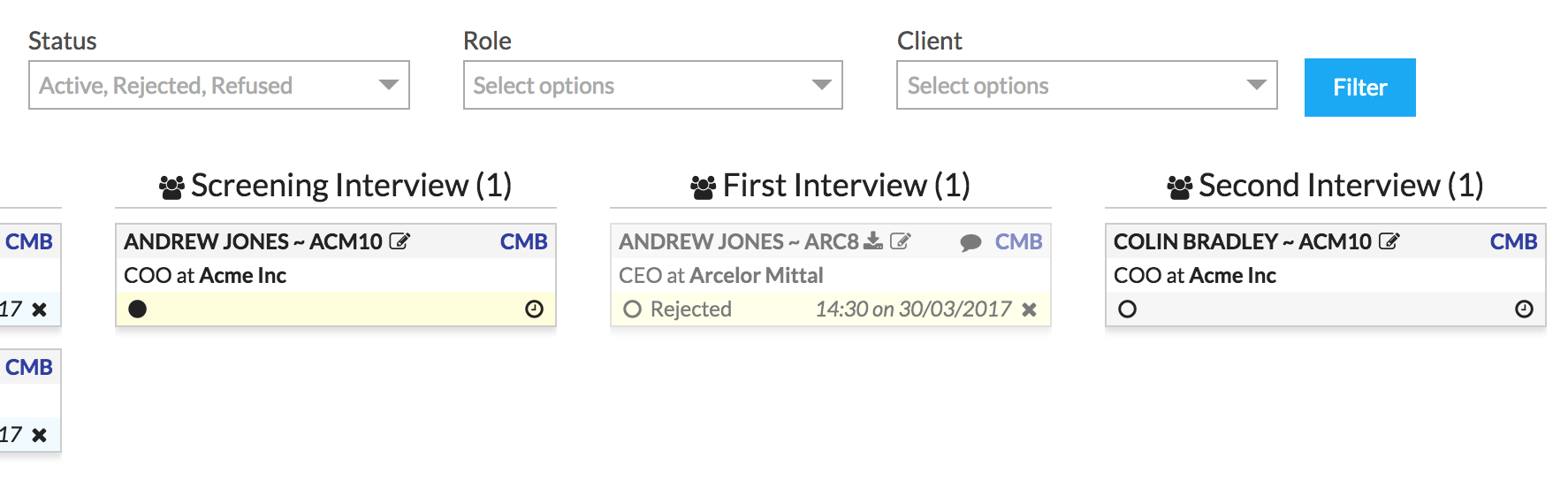
These filters are automatically set when you click the View in Workflows link on a candidate, role or client, e.g.:
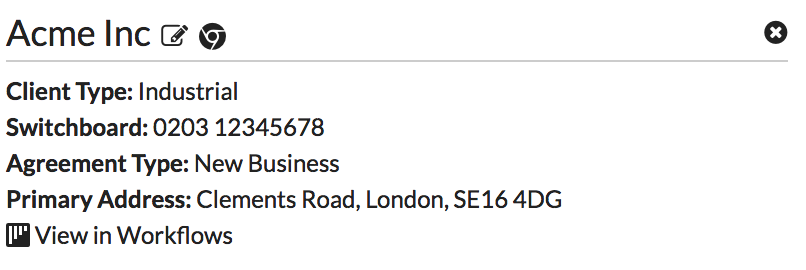
Clicking on View in Workflows sets the following filter: