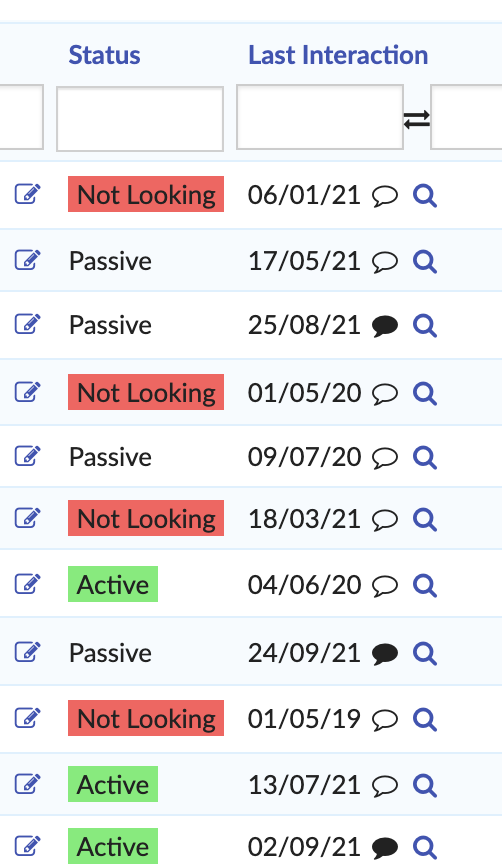
You can add colour highlights to any field that is customised so that it is restricted to a list.
The interface hasn’t yet been updated to apply these colours in the easiest way, but for now you can add a colour in the following way:
-
Open the settings page and expand the “Configure Fields” section
-
Select Candidate/Client/Hiring Manager or Role
-
Find the field that you want to update, and also find the hex code of the colour you want to apply (you can search for “hex color picker” and use a site like this)
-
Update the row of the entry you want to change by adding the tilde symbol (~) and the hex code of the colour (including the hash/#)
As an example I have a field called “Status” that I want to highlight in green if it is Active and in red if it is “Not Looking”. Here’s how it looks to start with:
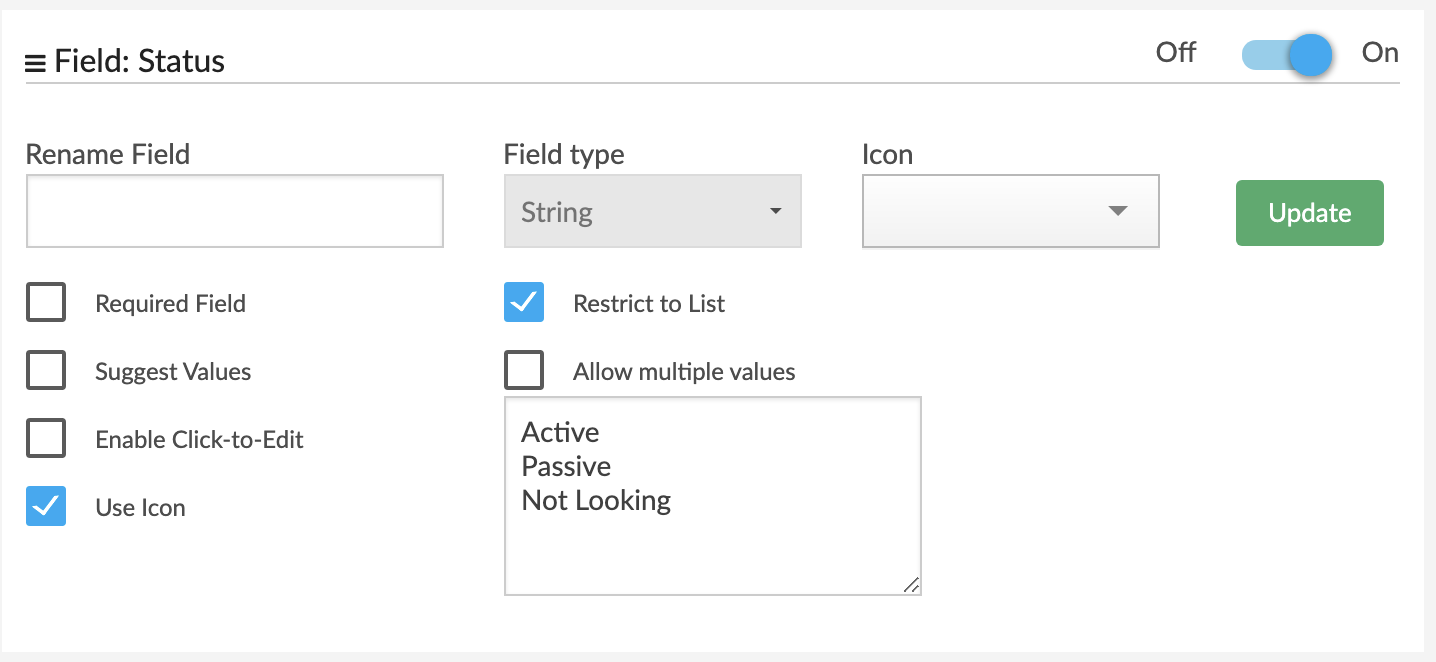
Now I need to find the green and red colours in a colour picker:
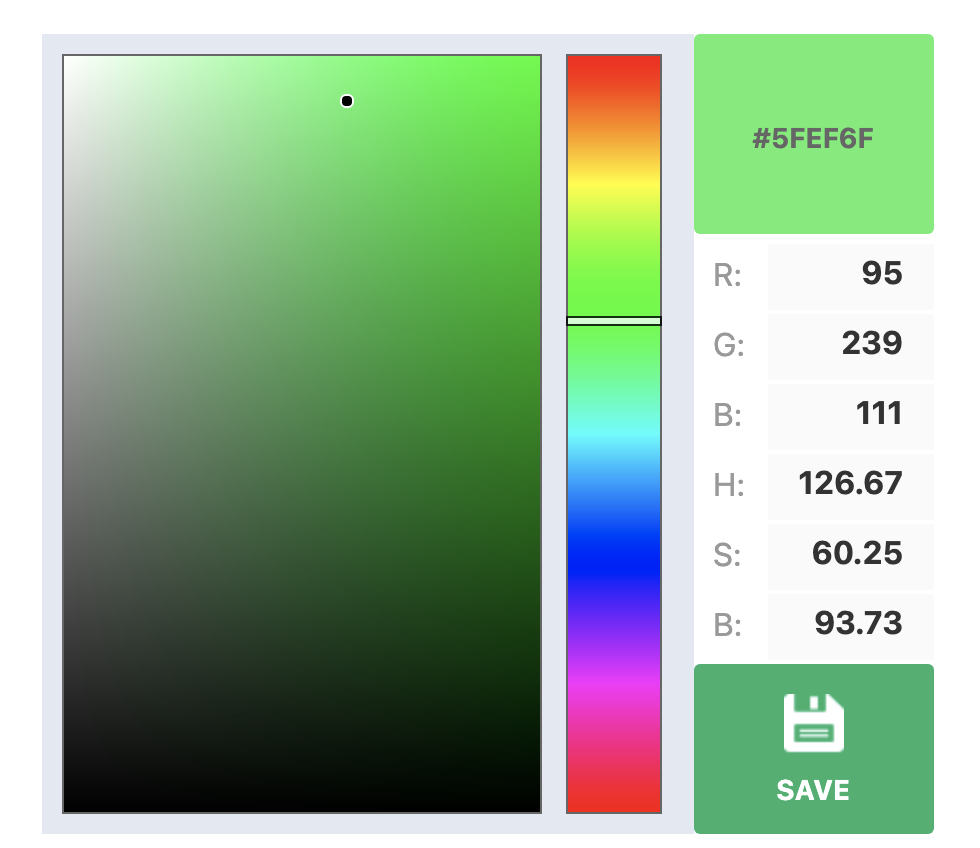
The full hex code here is #5FEF6F.
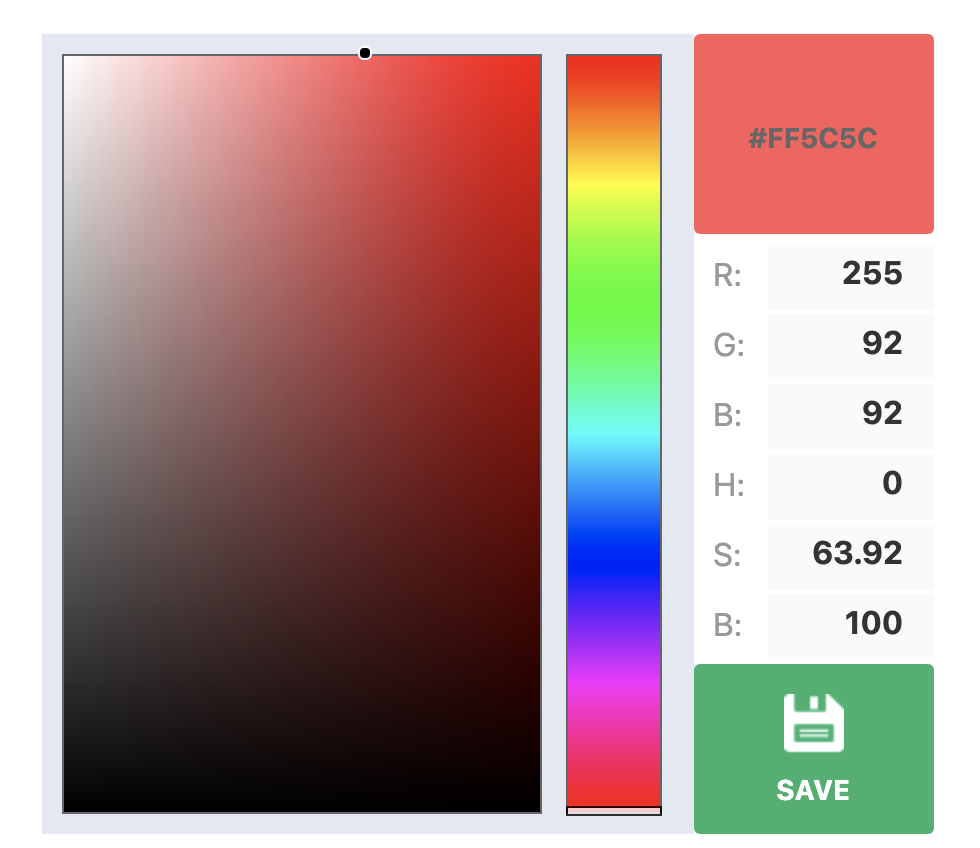
The full hex code here is #FF5C5C.
All that is required now is to add these to the right rows:
Active~#5FEF6F
Passive
Not Looking~#FF5C5C
And here’s how this looks on the list page: