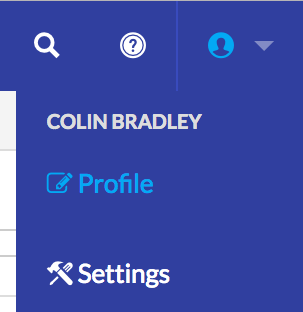
To access your profile settings, click on the icon (or profile picture) in the top right corner of the application, and click “Profile” from the drop-down:
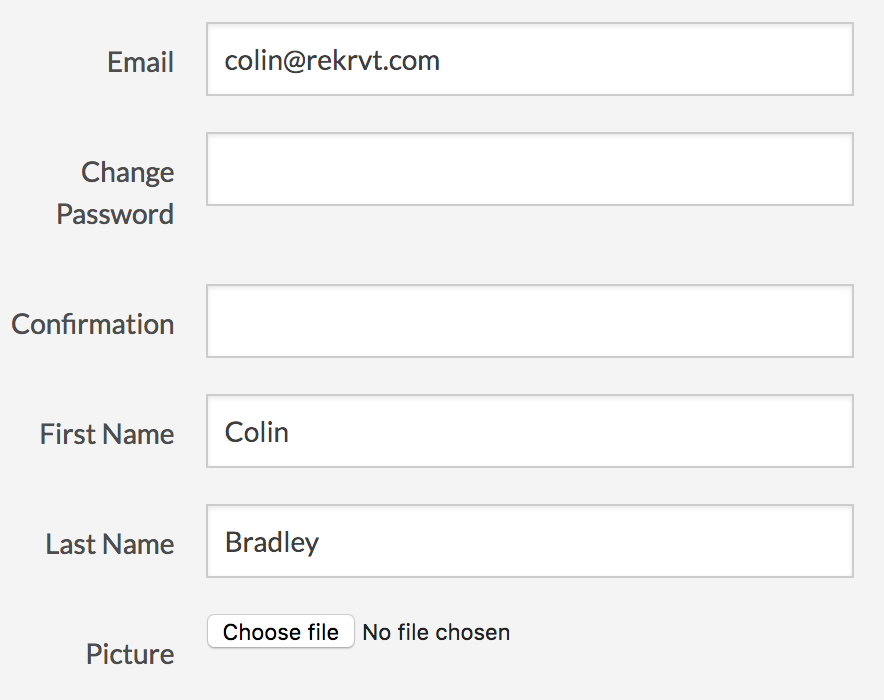
The screen allows you to update your email and password. Note that changing the email here will also change your login credentials.
You can also change your first name and last name as well set your avatar/profile picture. The profile picture will be displayed in the top right corner of the menu bar.
When done click the “Update Consultant” button at the bottom of the screen to save your changes.
Linking your profile with Outlook
Octavia CRM supports integration with 365. In this section we will describe how to link your email account with your Octavia CRM profile.
To connect your profile with your email account simply go to your Profile page and at the bottom click “Connect to Outlook 365”.
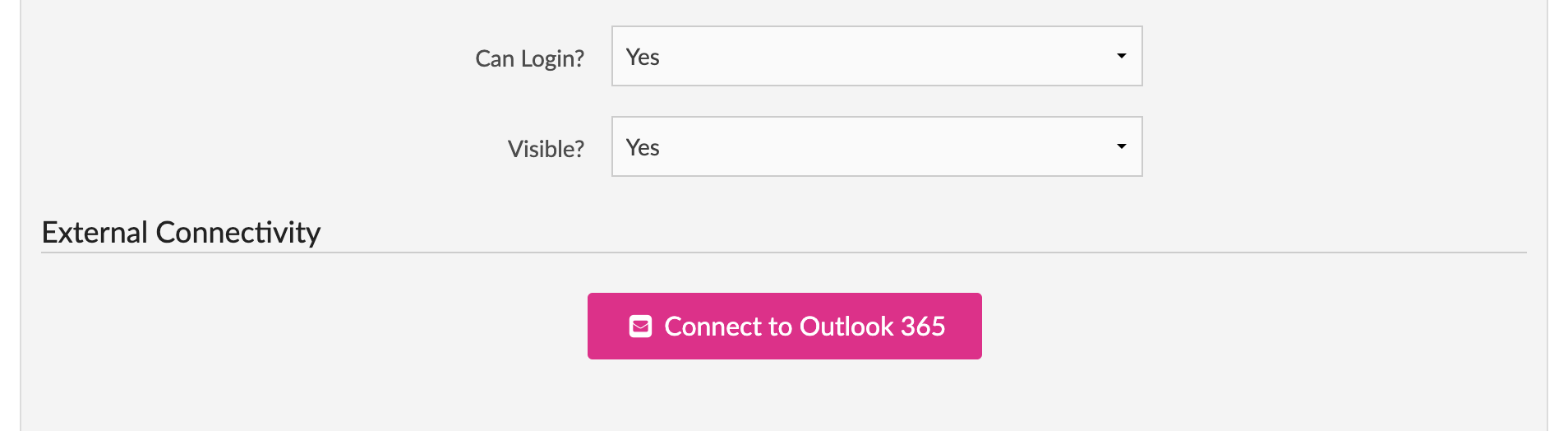
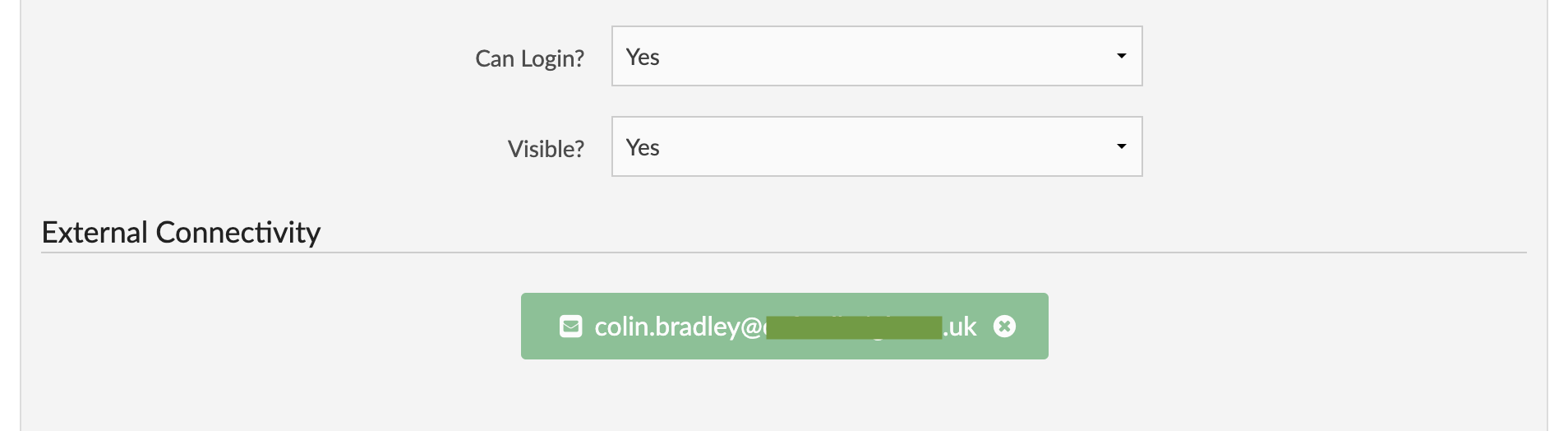
This will take you to the login page for Outlook. Once you a have logged in you will be asked to grant the necessary permissions. Click accept and you will be taken back to your profile page which will now display which provider you are connected to.
After having connected for the first time, the initial synchronisation of your email account will take place. This can take a few minutes depending on the size of the email history.