Setting up Payment Details
To setup or change your payment details go to the settings menu and click “Billings”. This will take you to the “Billings” screen.
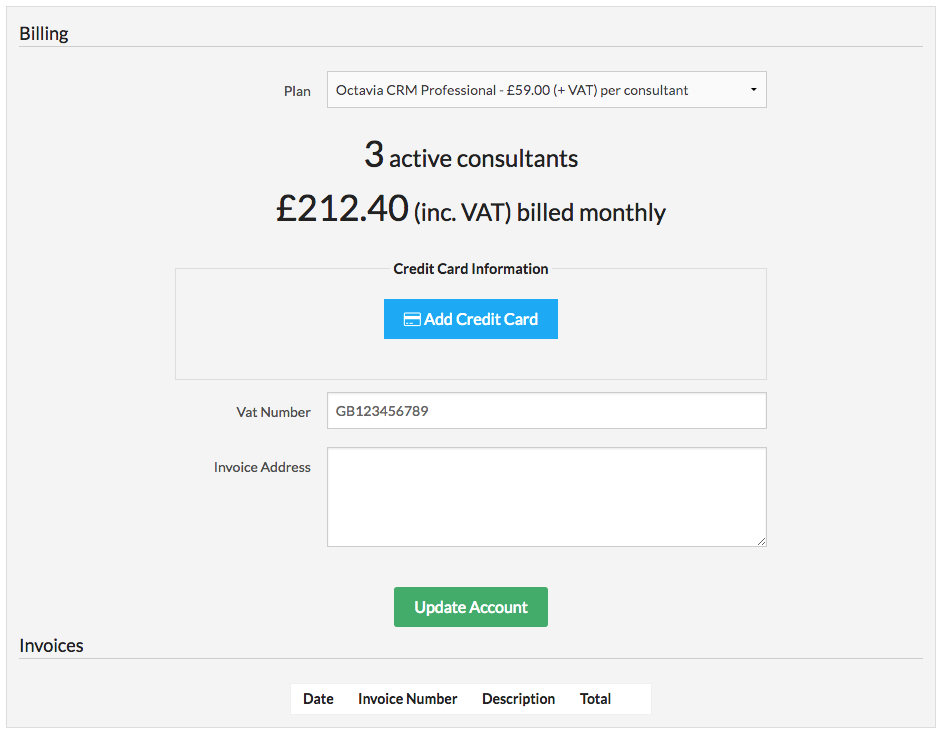
Here you are able to see your current plan (specifying how much you will be paying per license), how many consultants/licenses you currently have active and the total monthly charge.
Add your credit card details by clicking ‘Add Credit Card’, then fill out the needed details and click ‘Pay’. This will charge your credit card one month’s fee and setup a recurring monthly payment until cancelled.
Note payments and billings are operated by Stripe. Rekrvt Ltd does not hold any payment details.
Once the method of payment has been setup up, you will need to enter your VAT Number and Invoice Address, in order to generate invoices. Fill out the details and click ‘Update Account’ to save it.
Invoices
You will be receiving receipts of payment via email every time a transaction has occurred on your account.
You can also generate historic invoices in the ‘Invoices’ section of the Billings screen.
Billing Details
-
You will be billed monthly on a recurring basis until the account is cancelled.
-
To cancel the credit card payments, simply go to the Billings page an click ‘Cancel Credit Card’.
-
The billing date will be the date of the month that you initially setup your payment details on, e.g. if you initially setup your payment details on the 2nd of January, you will be billed on the 2nd of every month.
-
All changes to the number of licenses are prorated and adjustments are made to your next billing. For example, if you add a new license halfway through your monthly billing cycle, half a monthly cost for a license will be added to your next billing on top of the standard billing amount. Likewise, if you remove a license halfway through a billing cycle, the cost of half a license will be deducted from your next bill.